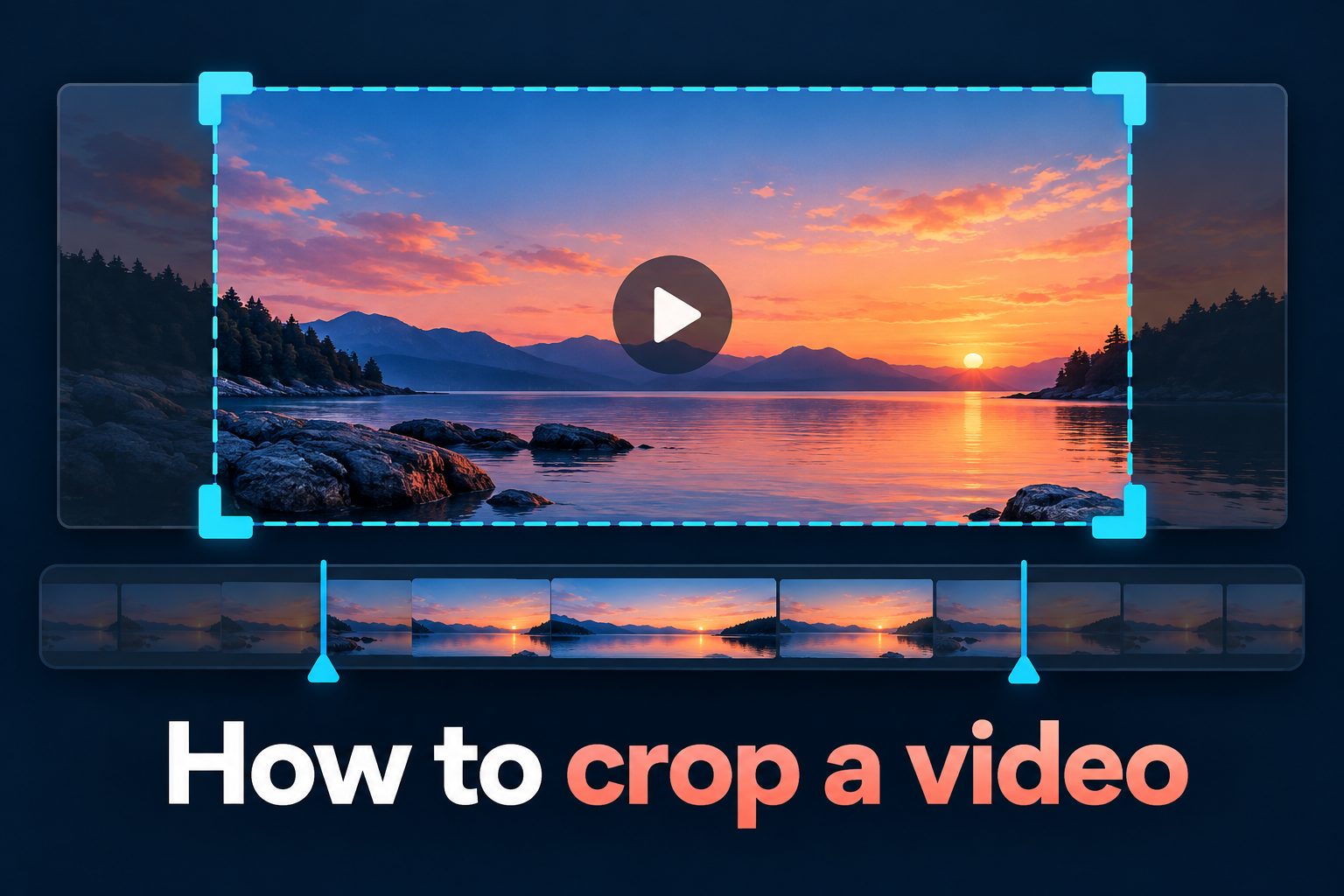
Learning how to crop a video helps you remove distractions, improve framing, and prepare footage for different screens without changing the important action. It is a simple edit, but a thoughtful crop can make a clip look more intentional and easier to watch.
Whether you filmed on a phone, camera, or screen recorder, the original frame may include unwanted edges, empty space, interface elements, or people who should not appear. Cropping lets you focus the viewer’s attention on what matters most.
This guide explains what video cropping means, when to use it, how to choose the right frame, and how to avoid common quality problems. You will also find practical examples, editing tips, and answers to common questions.
Cropping changes the visible boundaries of a video. Unlike trimming, which removes time from the beginning or end, cropping removes visual areas around the edges of every frame.
A crop can make a horizontal recording fit a vertical social post, remove a distracting object near the edge, or bring a speaker closer to the center of attention. It is mainly a composition tool.
Most editors offer a crop control with adjustable handles. You drag the handles inward, reposition the visible image, preview the result, and then export the revised file.
Cropping does not create new detail. When you make the visible area smaller and enlarge it to fill the output frame, the image can look softer, especially with low-resolution footage.
The best crop feels invisible to the viewer. It preserves the important subject, leaves enough space for movement, and matches the platform or purpose of the finished video.
How Do You Crop A Video Effectively?
1. Start With The Final Destination
Choose the platform or viewing context before you crop. A wide presentation video, a vertical short-form clip, and a square feed post need different proportions. Setting the destination first prevents repeated edits and helps you decide which part of the frame must remain visible.
2. Duplicate The Original Footage
Keep an untouched copy of the source video before making changes. Cropping is often reversible inside an editing project, but exported files may replace the original or lose useful quality. A separate copy gives you room to test alternate framing without risk.
3. Select The Correct Aspect Ratio
Use an aspect ratio that matches the intended screen. A wide ratio works well for many desktop and television views, while a tall ratio suits phone-first viewing. Locking the ratio keeps the crop proportional and makes the final composition more predictable.
4. Place The Main Subject First
Position the person, product, screen detail, or action that carries the message where viewers can see it immediately. Do not crop simply to fill space. Check that faces, hands, captions, and important objects remain inside the frame throughout the clip.
5. Leave Space For Movement
A moving subject needs room in the direction it is traveling or looking. If someone walks toward the edge of the crop, the video can feel cramped. Preview the full sequence, not only a still frame, to make sure the framing stays comfortable.
6. Review Text And Graphics
Make sure subtitles, logos, charts, and on-screen buttons are not cut off. This is especially important when converting landscape footage into vertical video. Keep key text away from edges because some players and apps may add interface controls over the frame.
Why Crop A Video Before Sharing It?
1. Cropping removes distracting background details that weaken the main message.
2. It adapts one recording for screens with different shapes and viewing habits.
3. A tighter frame can make a speaker, product, or demonstration easier to follow.
4. It can hide accidental edges, recording controls, or private details that should not remain visible.
5. A well-planned crop gives older footage a cleaner, more purposeful presentation.
Key Video Cropping Factors To Check
- Resolution: Start with the highest-quality source available. Heavy crops enlarge fewer pixels and may make the final video look blurry or blocky.
- Subject Position: Keep the important visual element clear and balanced. Centering is useful in many cases, but off-center framing can work when it leaves room for text or movement.
- Aspect Ratio: Match the crop to the final screen shape. This reduces empty borders and makes the video feel native to its destination.
- Motion: Watch for people, products, or camera movement that may leave the cropped area. A frame that works at one moment may fail seconds later.
- Captions: Protect subtitles and other essential words with safe space near the edges. Readability matters as much as visual style.
- Export Settings: Choose a sensible output resolution and preview the exported result. The crop may look correct in the editor but reveal softness or missing elements after export.
Common Video Cropping Mistakes To Avoid
1. Cropping Too Tightly
A very close crop can remove useful context and make people feel boxed in. It may also cut off natural gestures or leave no room for a subject to move. Begin with a slightly wider frame, then tighten only when the message remains clear.
2. Ignoring The Entire Clip
Choosing a crop from the opening frame alone is a frequent mistake. A speaker may lean, a product may move, or a camera may pan later. Scrub through the full video and review major movement points before committing to the crop.
3. Losing Important Headroom
Cropping too close above a person’s head often feels awkward, while excessive empty space can make the subject appear small. Aim for a natural amount of room above the head and adjust based on the person’s movement and the style of the video.
4. Cutting Off Captions
Captions improve accessibility, but they become useless when they sit outside the new frame or behind playback controls. Add captions after setting the crop when possible, or reposition them carefully and preview the video on a phone-sized screen.
5. Enlarging Low-Quality Footage
A crop becomes more noticeable when a small section of a low-resolution video is enlarged. If the image already looks soft, avoid severe zooming. Consider a wider crop, a smaller output size, or a different composition that preserves more source detail.
6. Using One Crop For Every Platform
A single crop rarely works perfectly everywhere. Wide footage may need a separate vertical version, and square placements may need another adjustment. Create platform-specific versions when the subject or text would otherwise be cut off or appear too small.
To crop a video well, begin with the final destination, choose the right aspect ratio, and keep the main subject visible from start to finish. Review motion, text, and important details before exporting.
The strongest crop improves focus without making viewers notice the edit. It removes distractions while preserving enough context for the footage to make sense.
Keep the original file, avoid extreme enlargement, and preview the result on the type of screen your audience is most likely to use. Small framing adjustments can make a major difference in clarity and impact.
FAQs About How To Crop A Video
What Is The Difference Between Cropping And Trimming A Video?
Cropping changes the visible picture area by removing parts of the top, bottom, or sides of each frame. Trimming changes the video duration by cutting time from the beginning, end, or middle. You can use both edits together, but they solve different problems.
Does Cropping A Video Reduce Quality?
Cropping can reduce apparent quality when the remaining image is enlarged to fill the output frame. The effect is stronger with low-resolution footage or an extreme crop. Starting with a high-resolution original and avoiding unnecessary zoom helps preserve a sharper result.
What Aspect Ratio Should I Use When I Crop A Video?
Use the aspect ratio that fits where the video will be viewed. Wide framing suits many standard players, while tall framing suits phone-first content. Square framing can be useful for compact feed placements. Always check whether captions and key details still fit.
Can I Crop A Video Without Removing The Original File?
Yes. Most editing tools let you crop non-destructively inside a project, meaning the source file stays unchanged. Export the cropped version under a new name and keep the original recording. This makes it easier to create another crop later if your needs change.
How Do I Crop A Moving Person In A Video?
Preview the complete clip and make sure the crop includes the person during their widest movement. If the subject travels across the frame, use keyframes or automatic tracking when available. Leave extra space in the direction of movement so the framing does not feel restrictive.
Should I Add Captions Before Or After Cropping A Video?
Adding captions after the crop is often easier because you can place them safely inside the final frame. If captions already exist, check every line after cropping. Keep them clear of edges and interface areas, and make sure they remain readable on smaller screens.